Portable Copilot CLI on a VPS (Mobile-Friendly Setup)
How I set up a cheap Ubuntu VPS for GitHub Copilot CLI with tmux, mobile SSH, and true cross-device session continuity.
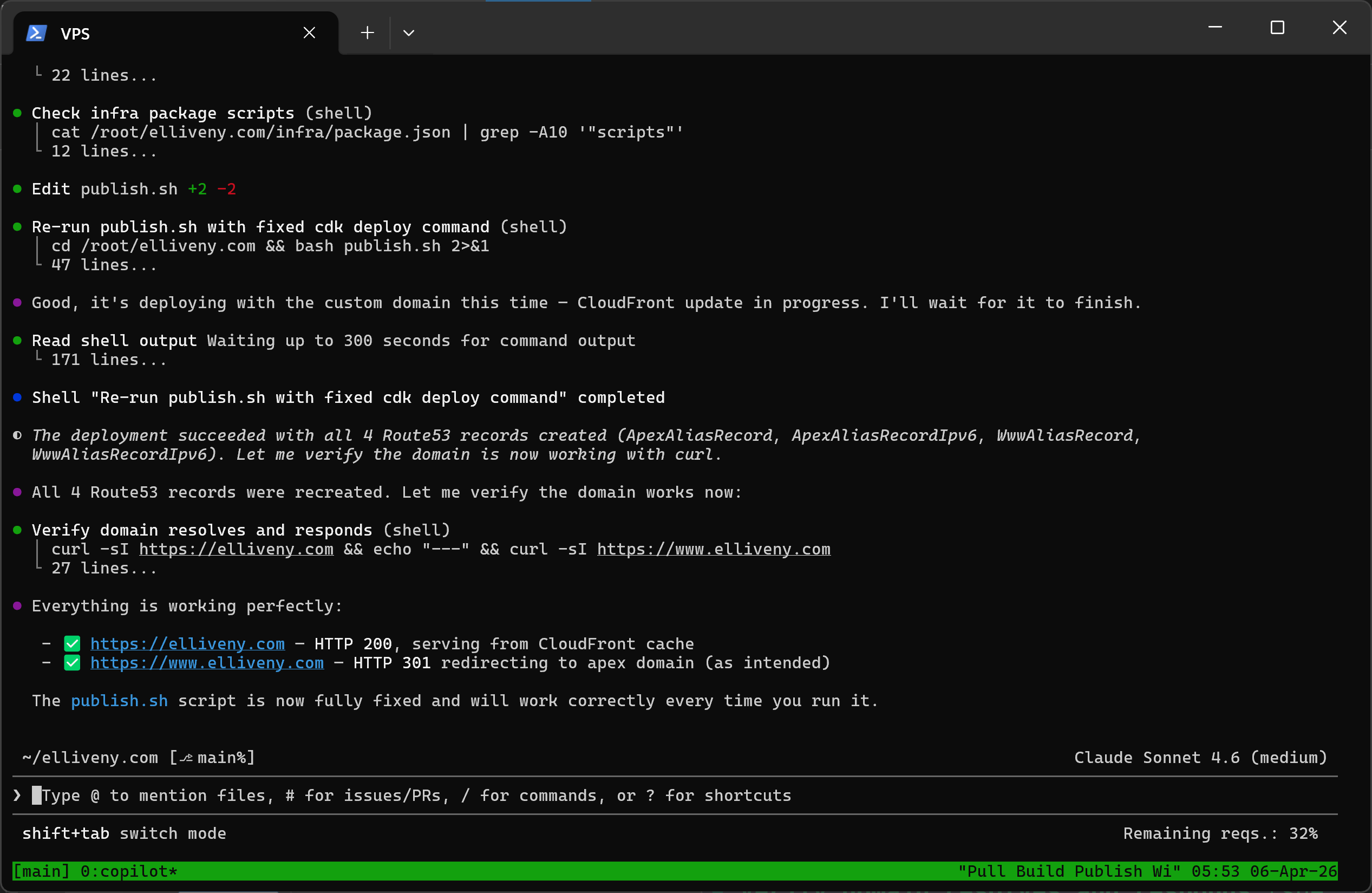
I wanted to use Copilot CLI from my phone and laptop, with the ability to switch between them. I set it up using a cheap Ubuntu VPS with SSH keys, a firewall, and tmux. The whole thing takes about twenty minutes to set up and costs a couple of pounds a month.
The real payoff is true cross-device continuity: start a long-running task on desktop, leave it running, pick it up on your phone, then return to desktop later — same session, same state, no context lost.

Why not just use the GitHub app?
The GitHub mobile app does support Copilot, and you can kick off agent tasks and follow their progress across devices. But the interaction model is different — you are dispatching work and reviewing results, not sitting inside a live terminal session.
With a VPS and tmux, you get a persistent, interactive shell. You can watch output stream in real time, provide input mid-task, scroll back through history, and switch devices without interrupting anything. It is closer to having your desktop in your pocket than a task queue you check on.
Both approaches have their place. Agent tasks are great for fire-and-forget work. The VPS setup is better when you want hands-on control from wherever you happen to be.
What this gives you
- Secure remote shell from any device with an SSH client.
- Terminal sessions that survive disconnects and device switches.
- Copilot CLI on a lightweight, always-on Linux box.
- Independence from any single machine.
The setup
1) Provision the VPS
Any provider works — IONOS, Hetzner, DigitalOcean, etc. Pick Ubuntu 24.04 with at least 1.8GB RAM (2GB is more comfortable). Note the server IP and initial root password.
2) Set up mobile SSH access
Install Termius (iOS or Android), connect as root with the initial password, then generate an ed25519 key in the app and export it to the server.
Once key auth works, lock down password login:
sed -i 's/^#\?PasswordAuthentication.*/PasswordAuthentication no/' /etc/ssh/sshd_config
sed -i 's/^#\?PermitRootLogin.*/PermitRootLogin prohibit-password/' /etc/ssh/sshd_config
systemctl restart ssh
Always verify key login in a second session before closing the original.
3) Enable a firewall
ufw allow OpenSSH
ufw enable
ufw status
4) Install tmux
tmux keeps your session alive when you disconnect and lets multiple devices share the same view.
apt update && apt install -y tmux
Configure it for mobile-friendly use:
cat >> ~/.tmux.conf << 'EOF'
set -g mouse on
set -g history-limit 20000
EOF
tmux source-file ~/.tmux.conf
Auto-attach on every SSH login so you never land outside tmux:
echo 'if [ -z "$TMUX" ]; then tmux attach -t main || tmux new -s main; fi' >> ~/.bashrc
5) Add swap (if RAM is tight)
Without swap, the kernel will kill processes when memory spikes. A 2GB swap file prevents that at the cost of some slowness under pressure.
fallocate -l 2G /swapfile
chmod 600 /swapfile
mkswap /swapfile
swapon /swapfile
echo '/swapfile none swap sw 0 0' >> /etc/fstab
free -h
6) Install Node.js and Copilot CLI
curl -fsSL https://deb.nodesource.com/setup_22.x | bash -
apt install -y nodejs
node -v
curl -fsSL https://gh.io/copilot-install | bash
hash -r
copilot --help
Run copilot, then /login, complete the device flow, and choose to store the token on the VPS.
7) Add laptop access
Generate a key on your laptop (Windows example shown — macOS/Linux is similar):
ssh-keygen -t ed25519 -C "laptop"
Get-Content ~/.ssh/id_ed25519.pub
Add that public key to the server:
echo "PASTE_LAPTOP_PUBLIC_KEY_HERE" >> ~/.ssh/authorized_keys
Then connect:
ssh root@<SERVER_IP>
Both phone and laptop attach to the same tmux session — you see the same terminal on both.
Daily workflow
- Connect from whichever device is closest.
- tmux auto-attaches to your existing session.
- Run
copilotand carry on where you left off.
If the connection drops, reconnect and everything is still there.
Security summary
- Password SSH disabled — key-based auth only.
- UFW firewall enabled — only SSH allowed.
- No dependency on an always-open personal machine.
- Copilot token stored on the VPS (acceptable for a personal server).
Simple, cheap, and reliable.